Sunday, 26 June 2011

Customize the Quick Launch Bar in Windows XP !!


In Windows XP, the customizable Quick Launch Bar also gives you convenient shortcuts to your favorite programs, folders, and files. The Quick Launch Bar remains accessible from most windows, so it’s a handy way to open the applications and files you use frequently.
If the Quick Launch Bar isn’t already visible to the right of the Start button Start button, you’ll need to turn it on. To do that, right-click an open area of the taskbar. Hover your mouse pointer over Toolbars, then click Quick Launch. The Quick Launch Bar appears on your taskbar.
The Quick Launch Bar on the Windows XP taskbar
To add a program shortcut to the Quick Launch Bar, click the Start buttonStart button, click All Programs, then click and drag the application you want to the Quick Launch Bar. Release the mouse button and the application’s icon appears in the Quick Launch Bar.
To add a folder or file shortcut to the Quick Launch Bar, open Windows Explorer, navigate to the folder, subfolder, or individual file you want, click and drag the folder or file you want to the Quick Launch Bar. Release the mouse button and the icon for the folder or file appears in the Quick Launch Bar.
To remove a shortcut from the Quick Launch Bar, right-click on the icon in the Quick Launch Bar of the application, folder, or file you want to remove and right-click it, click Delete, and then click Yes when asked if you’re sure you want to delete the shortcut. Note: Although the shortcut is removed from the Quick Launch Bar, the actual application, folder, or file has not been deleted from your computer.
Regards
nawazencyclopedia.blogspot.com

Saturday, 11 June 2011

Google Chrome - A web browser from Google !!


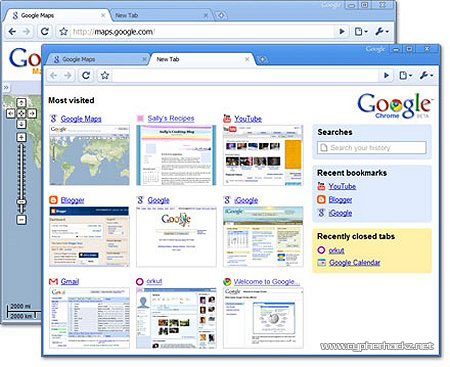
Google Chrome (not sure why the webpage still not showing up) is a web browser that will be released publicly to more than 100 countries by tomorrow. Google claims that their new browser can add values to the internet users and also help to drive innovation on the web.
google-chrome-screenshot
In my opinion, Google Chrome will be the best web browser and can beat Firefox very easily. This is because Google have studied everything from the data that they have collected from us before. Especially for those who are using Google Toolbar and Google Desktop. From the information they have gathered, Google can learn how the users think and how to make a powerful web browser that can give what the users want. After few years of research, here it comes, Google Chrome.

And also, if you use Google Chrome, Google will get more information and data about you. From the web history, emails, websites and everything that you do using Google Chrome, they will know. I am not sure whether this is true or not because I don't have any facts to prove it. But still, if you think carefully, you will see how Google is trying to be evil. They try to make all people using their products such as Google Analytics, Google Earth, Google Toolbar, Google Desktop, Google Mail, etc. and at the same time give them more information for their next product.
Anyway, everything that I said here is just my opinion. I have no intention to blame Google products or what so ever. And if you would like to know more about Google Chrome, what it capable of and what Google engineers has make Google Chrome so powerful, you can read their comic here. For me, this comic is very interesting. Really.
Every logo should be unique. But sometimes, we need to combine many ideas to come out with a new brilliant and impressive idea. So, would you like to know how Google Chrome got its logo?
Maybe the picture shown below is the answer.
chrome-logo-elements

Regards
nawazencyclopedia.blogspot.com

How to change Yahoo! Messenger Title Bar?


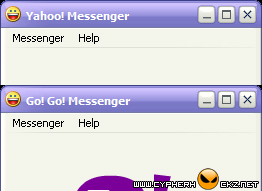
Do you want to change Yahoo! Messenger title bar to be like this?
ym-01
If the answer is YES, please continue reading...

In your Yahoo! Messenger installation folder (eg: C:\Program Files\Yahoo!\Messenger), look up for a filename with 'ymsgr.ini'. Open it with your favourite text editor like EditPlus 2 and add this code at the end of the file.
[APP TITLE]
CAPTION=put your text here
Put any text that you want to display at the CAPTION and click Save.
Now, reopen your Yahoo! Messenger and you will see the title bar is now changed to the text you have typed earlier.
Regards
nawazencyclopedia.blogspot.com
Files Hidden by Virus. How to Unhide Them?


1. Insert the thumb drive to an empty USB slot. Take note the drive letter. For an example, F:.
2. Press Windows + R, and type "cmd". Ok.

Regards
nawazencyclopedia.blogspot.com

How to print a list of directories and files in Windows?


Today I received a request from a customer asking me to provide him a list of directories and files from his Windows laptop. It is an easy task if there is only one folder and three files but unfortunately, there are hundreds of folders and thousands of files in a Windows operating system.
Luckily, I found a solution how to print out the list. To do that, I'm using Karen's Directory Printer. It can prints the list of directories and files into a hardcopy or to a text file.
Regards
nawazencyclopedia.blogspot.com

Create a folder without name in Windows XP !!


When each time you create a new folder in Windows XP, Microsoft has made "New Folder" as the default name. Even you enter the spacebar so many times to create blank spaces, it still will generate the "New Folder" text like this.
newfolder-01.gif
So, how you can create a folder like this?
newfolder-02.gif
To do this trick, you need a keyboard with numpad. To rename the folder with blank spaces, just press Alt + 255 and hit Enter. Then you are successfully creating a folder without name in Windows XP
But, make sure to press the numbers from the numpad and not from the numbers below the F1 - F12 keys. And take note that you only can create one folder without name in a directory.
 Regards
nawazencyclopedia.blogspot.com

Friday, 10 June 2011

Install xp from pen drive usb drive !!


In this article form our series of XP tips n trick I will show you how can you install XP from pen drive. This trick is best suitable for EeePC, other notebooks, laptops without or broken CD drive.
Perquisites for installing xp from pen drive
  • Windows Xp installation disk,
  • This file solution.rar
  • A working pen drive of at least 2 GB.
We first have to make pen drive bootable and need to put all necessary files in it. To do this go on a running computer which have working CD – ROM.
Now download this file solution.rar and extract it.
install xp from pen drive
Attach a pen drive (caution: - all data will be erase from pen drive)
Now go in the folder where you extracted the files from solution.rar and run HpUSBformat.exe.
install xp from pen drive
This command will auto detect your USB disk, if not, select form the list ( in this example my USB memory stick is drive M: )
Now set these options
  • Volume label : - SYSTEM
  • Check marks on :- Create a DOS Start up disk
  • Select radio button :- Using DOS system files located at:
  • Give the path where you have extracted solution.rar (Give the path of DOS folder) files
install xp from pen drive
now you have got an USB disk with bootable DOS system on it.
Copy all other files from DOS folder to your USB disk. ( you can overwrite existing ones)
install xp from pen drive
Put your Windows Xp installation disk into CD-ROM and copy all files from CD to USB drive.
Now your pen drive should look like this
install xp from pen drive
Now you have a bootable pen drive with xp.

Go on computer in which you want to install xp

Boot your laptop with previously prepared USB drive ( if you have problems, just check your BIOS or try to access boot menu, DEL? F10? F11?. In bios set first boot to removable media.)And follow these nine easy step to install xp.
Step1:- When system is booted up, and you see command prompt, type sys d: and hit enter if you see system transferred - you have luck, FAT32 file system is on drive C:, you will not lose your data
- go to step 5
- if any problem appears go to step 2
Step2:-REMEMBER, you will loose all data from drive C:/> - when system is booted up from USB, your drive C: appears as D:
Step3:- Type format d:/q/s to format drive D:
accept and when it is finished, go to step 5 ( you are lucky, you don't need to make partitions)
otherwise go to step 4
Step4:- Type fdisk and hit enter
create new partition ( after restart boot with pendrive in)
go to step 3 and format the partitions and come back here :)
type pqmagic and set your new partition active
( physical drive 2, Advanced A, set Active - S, are you sure - Y, Exit - X )
Step5:-Type nc and hit enter, and using Norton Commander, copy all files form pendrive to disk C: ( you can overwrite existing ones)
Step6:-Restart Laptop without pen drive in it (it should start from hard drive)
Step7:-Type cd i386 and hit enter (it will enter i386 folder)
Step8:-Type winnt and hit enter
Step9:-this will launch xp installation process and you can install xp as you do with cd.