Saturday, 28 May 2011

JUST READ TO BOOST YOUR COMPUTER KNOWLEDGE!!

What is a Computer Virus ?
A potentially damaging computer programme capable of reproducing itself causing great harm to files or other programs without permission or knowledge of the user.
Types of viruses :-
The different types of viruses are as follows-

1) Boot Sector Virus :- Boot sector viruses infect either the master boot record of the hard disk or the floppy drive. The boot record program responsible for the booting of operating system is replaced by the virus. The virus either copies the master boot program to another part of the hard disk or overwrites it. They infect a computer when it boots up or when it accesses the infected floppy disk in the floppy drive. i.e. Once a system is infected with a boot-sector virus, any non-write-protected disk accessed by this system will become infected.

Examples of boot- sector viruses are Michelangelo and Stoned.

2) File or Program Viruses :- Some files/programs, when executed, load the virus in the memory and perform predefined functions to infect the system. They infect program files with extensions like .EXE, .COM, .BIN, .DRV and .SYS .

Some common file viruses are Sunday, Cascade.

3) Multipartite Viruses :- A multipartite virus is a computer virus that infects multiple different target platforms, and remains recursively infective in each target. It attempts to attack both the boot sector and the executable, or programs, files at the same time. When the virus attaches to the boot sector, it will in turn affect the system’s files, and when the virus attaches to the files, it will in turn infect the boot sector.
This type of virus can re-infect a system over and over again if all parts of the virus are not eradicated.

Ghostball was the first multipartite virus, discovered by Fridrik Skulason in October 1989.
Other examples are Invader, Flip, etc.

4) Stealth Viruses :- These viruses are stealthy in nature means it uses various methods for hiding themselves to avoid detection. They sometimes remove themselves from the memory temporarily to avoid detection by antivirus. They are somewhat difficult to detect. When an antivirus program tries to detect the virus, the stealth virus feeds the antivirus program a clean image of the file or boot sector.

5) Polymorphic Viruses :- Polymorphic viruses have the ability to mutate implying that they change the viral code known as the signature each time they spread or infect. Thus an antivirus program which is scanning for specific virus codes unable to detect it's presense.

6) Macro Viruses :- A macro virus is a computer virus that "infects" a Microsoft Word or similar application and causes a sequence of actions to be performed automatically when the application is started or something else triggers it. Macro viruses tend to be surprising but relatively harmless.A macro virus is often spread as an e-mail virus. Well-known examples are Concept Virus and Melissa Worm.

What is a Trojan ?
"A Trojan Horse, or Trojan, is a term used to describe malware that appears, to the user, to perform a desirable function but, in fact, facilitates unauthorized access to the user's computer system". - Wikipedia

"A Trojan horse is an apparently useful program containing hidden functions that can exploit the privileges of the user [running the program], with a resulting security threat.". - CERT Advisory
Types of Trojan :- The different types of Trojan Horses are as follows-

1) Remote Access Trojans :- Abbreviated as RATs, a Remote Access Trojans are potentially the most damaging, designed to provide the attacker with complete control of the victim's system.

2) Data Sending Trojans :- A type of a Trojan horse that is designed to provide the attacker with sensitive data such as passwords, credit card information, log files, e-mail address or IM contact lists. They could install a keylogger and send all recorded keystrokes back to the attacker.

3) Destructive Trojans :- Once this Trojan is installed on your computer, it will begin to systematically or completely randomly delete information from your computer. This can include files, folders, registry entries, and important system files, which likely to cause the failure of your operating system.

4) Proxy Trojans :- A type of Trojan horse designed to use the victim's computer as a proxy server. This gives the attacker the opportunity to conduct illegal activities, or even to use your system to launch malicious attacks against other networks.

5) FTP Trojans :- A type of Trojan horse designed to open port 21 (FTP) and acts like an FTP server. Once installed, the attacker not only could download/upload files/programs to victim's computer but also install futher malware on your computer.

6) Security Software Disabler Trojan :- A type of Trojan horse designed stop or kill security programs such as an antivirus program or firewall without the user knowing. This Trojan type is normally combined with another type of Trojan as a payload.

7) DoS Attack Trojans :- These trojans are used by the attacker to launch a DoS/DDoS attack against some website or network or any individual. In this case they are well known as "Zombies".
How Trojan Works ?
Trojans typically consist of two parts, a client part and a server part. When a victim (unknowingly) runs a Trojan server on his machine, the attacker then uses the client part of that

Trojan to connect to the server module and start using the Trojan. The protocol usually used for communications is TCP, but some Trojans' functions use other protocols, such as UDP, as well. When a Trojan server runs on a victim’s computer, it (usually) tries to hide somewhere on the computer; it then starts listening for incoming connections from the attacker on one or more ports, and attempts to modify the registry and/or use some other auto-starting method.

       It is necessary for the attacker to know the victim’s IP address to connect to his/her machine. Many Trojans include the ability to mail the victim’s IP and/or message the attacker via ICQ or IRC. This system is used when the victim has a dynamic IP, that is, every time he connects to the Internet, he is assigned a different IP (most dial-up users have this). ADSL users have static IPs, meaning that in this case, the infected IP is always known to the attacker; this makes it considerably easier for an attacker to connect to your machine.

       Most Trojans use an auto-starting method that allows them to restart and grant an attacker access to your machine even when you shut down your computer.
How Trojan Horses Are Installed ?
Infection from Trojans is alarmingly simple. Following are very common ways to become infected that most computer users perform on a very regular basis.
  • Software Downloads
  • Websites containing executable content (ActiveX control)
  • Email Attachments
  • Application Exploits (Flaws in a web applications)
  • Social Engineering Attacks

                                                                                          nawazencyclopedia.blogspot.com
The Removal :-
Antivirus software is designed to detect and delete Trojan horses ideally preventing them from ever being installed.


                                                                                                     Regards

Remove shortcut arrow from desktop icons completely!!

To remove shortcut arrow from desktop icons in any type of document:
a) Perform instructions described under ‘Remove shortcut arrow from desktop icons’. For your convenience, steps 1 to 3 are reported here.
b) Perform instructions described under ‘Remove shortcut arrow from desktop icons (2)’. For your convenience, steps 4 and 5 are reported here.
c) And finally, do the same with conferencelink, docshortcut, internetshortcut and wshfile.
So, here is a summary of all actions:
1. Start regedit.
2. Navigate to HKEY_CLASSES_ROOT\lnkfile
3. Delete the IsShortcut registry value.
4. Navigate to HKEY_CLASSES_ROOT\piffile
5. Delete the IsShortcut registry value.
6. Navigate to HKEY_CLASSES_ROOT\ConferenceLink
7. Delete the IsShortcut registry value.
8. Navigate to HKEY_CLASSES_ROOT\DocShortCut
9. Delete the IsShortcut registry value.
10.Navigate to HKEY_CLASSES_ROOT\InternetShortcut
11. Delete the IsShortcut registry value.
12. Navigate to HKEY_CLASSES_ROOT\WSHFile
13. Delete the IsShortcut registry value.
14. Close regedit.
Logoff and… Enjoy!
Note : Please note that in some cases deactivating the arrow for *.LNK files might lead to duplicate items in the Explorer Context menu.
                                                                                                           Regards
                                                                                  nawazencyclopedia.blogspot.com

Wednesday, 11 May 2011

How to fasten up Windows XP !!

1. DISABLE INDEXING SERVICES:-
Indexing Services is a small little program that uses large amounts of RAM and can often make a computer endlessly loud and noisy. This system process indexes and updates lists of all the files that are on your computer. It does this so that when you do a search for something on your computer, it will search faster by scanning the index lists. If you don’t search your computer often, or even if you do search often, this system service is completely unnecessary. To disable do the following:

1. Go to Start
2. Click Settings
3. Click Control Panel
4. Double-click Add/Remove Programs
5. Click the Add/Remove Window Components
6. Uncheck the Indexing services
7. Click Next


2. OPTIMISE DISPLAY SETTINGS

Windows XP can look sexy but displaying all the visual items can waste system resources. To optimise:

1.Go to Start
2. Click Settings
3. Click Control Panel
4. Click System
5. Click Advanced tab
6. In the Performance tab click Settings
7. Leave only the following ticked:
- Show shadows under menus
- Show shadows under mouse pointer
- Show translucent selection rectangle
- Use drop shadows for icons labels on the desktop
- Use visual styles on windows and buttons


3. SPEEDUP FOLDER BROWSING:-

You may have noticed that everytime you open my computer to browse folders that there is a slight delay. This is because Windows XP automatically searches for network files and printers everytime you open Windows Explorer. To fix this and to increase browsing significantly:

1. Open My Computer
2. Click on Tools menu
3. Click on Folder Options
4. Click on the View tab.
5. Uncheck the Automatically search for network folders and printers check box
6. Click Apply
7. Click Ok
8. Reboot your computer


4. IMPROVE MEMORY USAGE:-

Cacheman Improves the performance of your computer by optimizing the disk cache, memory and a number of other settings.
NOTE: This program is shareware and some features require activation.
Once Installed:

1.Go to Show Wizard and select All
2.Run all the wizards by selecting Next or Finished until you are back to the main menu. Use the defaults unless you know exactly what you are doing.
3.Exit and Save Cacheman
4.Restart Windows


5. OPTIMISE YOUR INTERNET CONNECTION:-

There are lots of ways to do this but by far the easiest is to run TCP/IP Optimizer.

1. Download and install
2. Click the General Settings tab and select your Connection Speed (Kbps)
3. Click Network Adapter and choose the interface you use to connect to the Internet
4. Check Optimal Settings then Apply
5. Reboot


6. OPTIMISE YOUR PAGEFILE:-

If you give your pagefile a fixed size it saves the operating system from needing to resize the page file.

1. Right click on My Computer and select Properties
2. Select the Advanced tab
3. Under Performance choose the Settings button
4. Select the Advanced tab again and under Virtual Memory select Change
5. Highlight the drive containing your page file and make the initial Size of the file the same as the Maximum Size of the file.

Windows XP sizes the page file to about 1.5X the amount of actual physical memory by default. While this is good for systems with smaller amounts of memory (under 512MB) it is unlikely that a typical XP desktop system will ever need 1.5 X 512MB or more of virtual memory. If you have less than 512MB of memory, leave the page file at its default size. If you have 512MB or more, change the ratio to 1:1 page file size to physical memory size.


7. SPEEDUP FOLDER ACCESS - DISABLE LAST ACCESS UPDATE:-

If you have a lot of folders and subdirectories on your computer, when you access a directory XP wastes a lot of time updating the time stamp showing the last access time for that directory and for ALL sub directories. To stop XP doing this you need to edit the registry. If you are uncomfortable doing this then please do not attempt.

1. Go to Start and then Run and type “regedit”
2. Click through the file system until you get to “HKEY_LOCAL_MACHINE\ System\CurrentControlSet\Control\FileSys
tem”
3. Right-click in a blank area of the window on the right and select ‘DWORD Value’
4. Create a new DWORD Value called ‘NtfsDisableLastAccessUpdate’
5. Then Right click on the new value and select ‘Modify’
6. Change the Value Data to ‘1′
7. Click ‘OK’


8. MAKE YOUR MENUS LOAD FASTER:-

This is one of my favourite tweaks as it makes a huge difference to how fast your machine will ‘feel’. What this tweak does is remove the slight delay between clicking on a menu and XP displaying the menu.

1. Go to Start then Run
2. Type ‘Regedit’ then click ‘Ok’
3. Find “HKEY_CURRENT_USER\Control Panel\Desktop\”
4. Select “MenuShowDelay”
5. Right click and select “Modify’
6. Reduce the number to around “100″
7. This is the delay time before a menu is opened. You can set it to “0″ but it can make windows really hard to use as menus will open if you just look at them - well move your mouse over them anyway. I tend to go for anywhere between 50-150 depending on my mood.


9. IMPROVE XP SHUTDOWN SPEED:-

This tweak reduces the time XP waits before automatically closing any running programs when you give it the command to shutdown.

1. Go to Start then select Run
2. Type ‘Regedit’ and click ok
3. Find ‘HKEY_CURRENT_USER\ Control Panel\Desktop\’
4. Select ‘WaitToKillAppTimeout’
5. Right click and select ‘Modify’
6. Change the value to ‘1000′
7. Click ‘OK’
8. Now select ‘HungAppTimeout’
9. Right click and select ‘Modify’
10. Change the value to ‘1000′
11. Click ‘OK’
12. Now find ‘HKEY_USERS\ .DEFAULT\Control Panel\Desktop’
13. Select ‘WaitToKillAppTimeout’
14. Right click and select ‘Modify’
15. Change the value to ‘1000′
16. Click ‘OK’
17. Now find ‘HKEY_LOCAL_MACHINE\ System\CurrentControlSet\Control\’
18. Select ‘WaitToKillServiceTimeout’
19. Right click and select ‘Modify’
20. Change the value to ‘1000′
21. Click ‘OK’


10. IMPROVE SWAPFILE PERFORMANCE:-

If you have more than 256MB of RAM this tweak will considerably improve your performance. It basically makes sure that your PC uses every last drop of memory (faster than swap file) before it starts using the swap file.

1. Go to Start then Run
2. Type “msconfig.exe” then ok
3. Click on the System.ini tab
4. Expand the 386enh tab by clicking on the plus sign
5. Click on new then in the blank box type”ConservativeSwapfileUsage=1″
6. Click OK
7. Restart PC


11. ENSURE XP IS USING DMA MODE:-

XP enables DMA for Hard-Drives and CD-Roms by default on most ATA or ATAPI (IDE) devices. However, sometimes computers switch to PIO mode which is slower for data transfer - a typical reason is because of a virus. To ensure that your machine is using DMA:

1. Open ‘Device Manager’
2. Double-click ‘IDE ATA/ATAPI Controllers’
3. Right-click ‘Primary Channel’ and select ‘Properties’ and then ‘Advanced Settings’
4. In the ‘Current Transfer Mode’ drop-down box, select ‘DMA if Available’ if the current setting is ‘PIO Only’
                                                                                                             Regards
                                                                                            nawazencyclopedia.blogspot.com  
                                                                                              

Google Search Tips !!


You can make your search more efficient by learning some search basics !

Try these tips :
1. Use Of '+' sign :
This ensures that the results returned to you will definatly consist of the word following the '+' sign. For Eg :
Search: reviews of +iPhone and iPod
This will show results containing the word reviews or iPod but the results will definatly consist of iPhone !

2. Use Of '-' sign :
Using '-' sign before any word will ensure that the particular word will not be included in the results !

3. Use Of '~' sign :
Using '~' before any word will return the results also containing the synonyms of the word !

4. Search a particular site :
To search a particular website you can use the following syntax in the google search :
Search: site:www.xyz.com abc
For Eg :
Search: site:http://pcremix.blogspot.com/ Google Search Tips

5. Define a word :
To get the definition of a word just use :
Search: define:abc
For Eg : Search: define:Computer
This will return you results which define 'Computer'.

6. Find Pages similar to a page :
To find a page similar i.e. consisting of same type of content, use the following syntax :
Search: related:http://www.xyz.com/

7. Search for exact phrase :
To search a set of words exactly together i.e.
For Eg :
Search: "contact us"
This will return the results containing both contact and us together !

8. Using the wild card '*' :
The * sign can be used in places where the whole word is not known.
For Eg:
Search: friend*
This will return the results containing friend , friends , friendship.

9. Using the '?' sign :
This is used when the full spelling of the word is not known.
For Eg:
Search: fri??d
This will result that in the results in which any alphabet can take the place of '?' sign.

10. Use of boolean operators :
The boolean operators like AND,OR,NOT can be used in search box to connect the words !
The search engine understands them as what they mean but the must be in capital letters !
For Eg:
Search: swim OR float
This will return the results containing either swim or float !
                                                                                                          Regards
                                                                                        nawazencyclopedia.blogspot.com

window magics---Try this one !!

MAGIC #1

An Indian discovered that nobody can create a FOLDER anywhere on the computer which can be named as "CON". This is something pretty cool...and unbelievable... At Microsoft the whole Team, couldn't answer why this happened!
TRY IT NOW ,IT WILL NOT CREATE " CON " FOLDER


MAGIC #2
For those of you using Windows, do the following:

1.) Open an empty notepad file
2.) Type "Bush hid the facts" (without the quotes)
3.) Save it as whatever you want.
4.) Close it, and re-open it.

is it just a really weird bug? :-??


MAGIC #3
microsoft crazy facts


This is something pretty cool and neat...and unbelievable... At Microsoft the whole Team, including Bill Gates, couldn't answer why this happened!

It was discovered by a Brazilian. Try it out yourself...

Open Microsoft Word and type

=rand (200, 99)

And then press ENTER
then see the magic...............................
                                                                                                Regards
                                                                     nawazencyclopedia.blogspot.com

Monday, 9 May 2011

How to take a screen hot in XP if you have no print screen button!!

- Click "Start" button
- Click on "RUN"
- Enter\type "OSK" (without quotes)

The keyboard comes on
go to whatever you want to print screen and press the "psc"button,
if you cant see this look at the top row of buttons (its the 3rd from the last, on the right)

once you've pressed the "psc" button on what you wanted to print screen, open paint look at the top toolbar where "edit" is, click "edit" and then click "paste" and there you go, your print screen..hope this helped

Sunday, 1 May 2011

How to Install Windows XP !!

Why Do We Need To Re-install Windows XP?

You need a “clean install” of Windows XP when you got millions of viruses in your computer or you had tried every thing to restore your windows by using anti virus or system restore tools etc. A brand new hard drive also needs to install clean XP. A clean install simply means formatting the hard drive ( only C drive ) and reinstalling the operating system, puts the system back in the state in which you first got the machine.

Before You Proceed With The Installation

Backup your important data before you begin this process! (If you have multiple partitions on your hard drive, data on partitions other than the system partition “except C drive” will not be affected with the following steps, but a backup is still recommended to be on the safe side). You will also have to re install all the softwares you were using in your previous XP.
NOTE : Use these instructions at your own risk!. Only users experienced in installing, troubleshooting, and making repairs to Windows Operating Systems should attempt to follow these instructions on their own. If you choose to proceed, be aware that GetPcMemory assumes no responsibility for any problems encountered.

Step 1 : Prepare The Boot Sequence

Insert the windows XP cd in your cdrom and than go to the BIOS by hitting “DEL” or “F12″ when your system in powering on. Go to Boot order and make sure cdrom is on the first place.
Save settings and restart your computer.
Once you have successfully booted from the CD, you will see the Windows XP “Welcome to Setup” screen. Press ENTER to begin the setup process.

Step 2: Accept the license agreement

When you see the Windows XP license agreement press F8 to accept it and proceed.

Step 3: Searching for Previous Versions of Windows XP

Setup will search for existing Windows installations. You will see the next “repair or install fresh copy” screen appear only if a Windows installation currently exists on your machine. If you’re installing on a brand-new hard drive, skip to Step 5.

Step 4:Continue Installing a Fresh Copy

Press ESC. You will be given a list of partitions available on your hard drive.

Step 5: Partitions

If there are multiple partitions on your hard drive, or you have multiple hard drives in the computer, use the UP or DOWN arrow keys to choose your install partition. Please note that your system partition needs to be a primary partition (usually the first partition that shows up in the list), not a logical partition.
The partition should be at least 10 GB in size. Make sure that all the data you need from this partition is copied elsewhere, because it will be deleted.
Once you have selected the right partition selected, press ENTER. You will see the next “you already have a system installed” screen only if you already have Windows installed on this partition. If you are installing on a brand-new hard drive, skip to Step 7.

Step 6: Continue Installing On The Selected Drive

Press C to continue. You will be given a list of install options
/

Step 7: Format The Selected Partition

Select the option to “Format the partition using the NTFS file system (quick) and press ENTER.You will receive a warning about formatting the drive unless the drive is brand-new.

Step 8: Continue With The Format

Press F to continue formatting selected partition. If you still haven’t backed up, this is the last change to backup your important data, after this step you will not to able to go back and restore your data.

Step 9: Copying Files

After the format setup will automatically copy files and restart your computer. Go to BIOS and remove cdrom from first boot device. Start your computer.
/

Step 10: Automatic Installation After Restart

Setup will continue to install after the restart. it will ask you for the product key and user name etc. Fill the forms yourself.

After The Installation

Install the missing drivers because windows XP will install a limited set of drivers,you’ll have to find the rest. To see which drivers you’re missing, go to the Control Panel > System > Hardware tab > Device Manager. Things next to a Yellow exclamation is a missing driver. You’ll need to reinstall these drivers from a system CD that came with your computer or download them from the manufacture’s website.
                                                                                          Regards
                                                                   nawazencyclopedia.blogspot.com

How to Disable or Enable Error Reporting in Windows XP !!

Sometimes a window popup when Application crashes in XP and asks to notify Microsoft about it. So Microsoft can know it and help you to fix it. This option is enabled by default in Windows XP.


You can disable it if you dont want to send the report to Microsoft or if you are not connected to Internet. You can disable this feature or can restrict to specified system or application error.


It is easy to enable or disable error reporting.


Step 1: Just right click on My Computer icon and click on Advanced tab.


Step 2: Then click on Error Reporting tab.

Step 3: Choose Disable error reporting and the option to notify critical errors and press OK.

                                                                                           Regards

                                                                             nawazencyclopedia.blogspot.com


2 Ways to Rename Recycle Bin in Windows XP !!

Recycle Bin
I have told you about How to Hide/Un-Hide Recycle Bin Icon on Desktop in XP. Most peoples don't want that annoying Recycle Bin Icon on there Desktop. But some of you, like me, want to leave (give it a chance) the Recycle Bin Icon on Desktop but don't want the traditional name Recycle Bin.
Here I am listing 2 ways to Rename the Recycle Bin Icon. You can rename the Recycle Bin to what ever you want like Trash, Garbage, Dust Bin etc.
To rename the Recycle Bin all you have to do is to make some changes in the registry (regedit.exe) file. It is highly recommended that you should backup your registry. This Blog's Author will not be liable if any damage occurs.

1) This is the first way you can rename Recycle Bin

1. Click Start
2. Click Run
3. Type regedit and hit ENTER
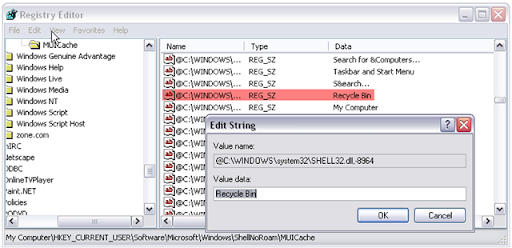
4. In the registry editor go to the following key:
HKEY_CURRENT_USER\Software\Microsoft\Windows\ShellNoRoam\MUICache
5. Find and Double click on the following value:
@C:\WINDOWS\system32\SHELL32.dll,-8964
Change Recycle Bin
6. Change the value to whatever you wish.
7. Click OK and close out regedit
8. Click on a blank area of the desktop and select refresh from the context menu.
9. After the screen refreshes, you recycle bin will be renamed to whatever you decided.
[via Tech-Recipes]

2) Here is the second way to Rename Recycle Bin

This trick is somewhat rough, hence it is optional. I used this trick and found my Recycle Bin renamed. If the first trick fails, you can do this at your own risk. This Blog's Author will not be liable if any damage occurs. It is highly recommended that you should backup your registry.
1. Click Start > Run
2. Type regedit
3. Press Ctrl+F to open search box and type Recycle Bin and search
4. Change what ever you found (Value/Data/Key) with Recycle Bin to Desired Name
5. Press F3 to continue searching for 'Recycle Bin'
6. Repeat step 4 until you have finished with searching and changed all values to its new name.
7. Close regedit and refresh desktop, You will find the Recycle Bin is Renamed.

                                                                                        Regards
                                                                    nawazencyclopedia.blogspot.com